Decide what the library includes
A photo library is rarely just a folder of finished JPEGs. It may include original camera files, videos, exported images, editing catalogs, sidecar files, presets, captions and notes. Before choosing a backup method, identify which parts you would need to resume work after losing your computer. Keep a simple record of where those parts live; a backup can only protect files it has been told to copy.
Originals deserve particular care because they may be impossible to recreate. Catalogs and sidecar files matter for a different reason: they can hold selections, ratings and editing decisions that would take considerable time to repeat. The exact contents vary by editing application. Check whether your software stores adjustments in a catalog, alongside the images or both, and include those locations in your plan.
Make independent copies in separate locations
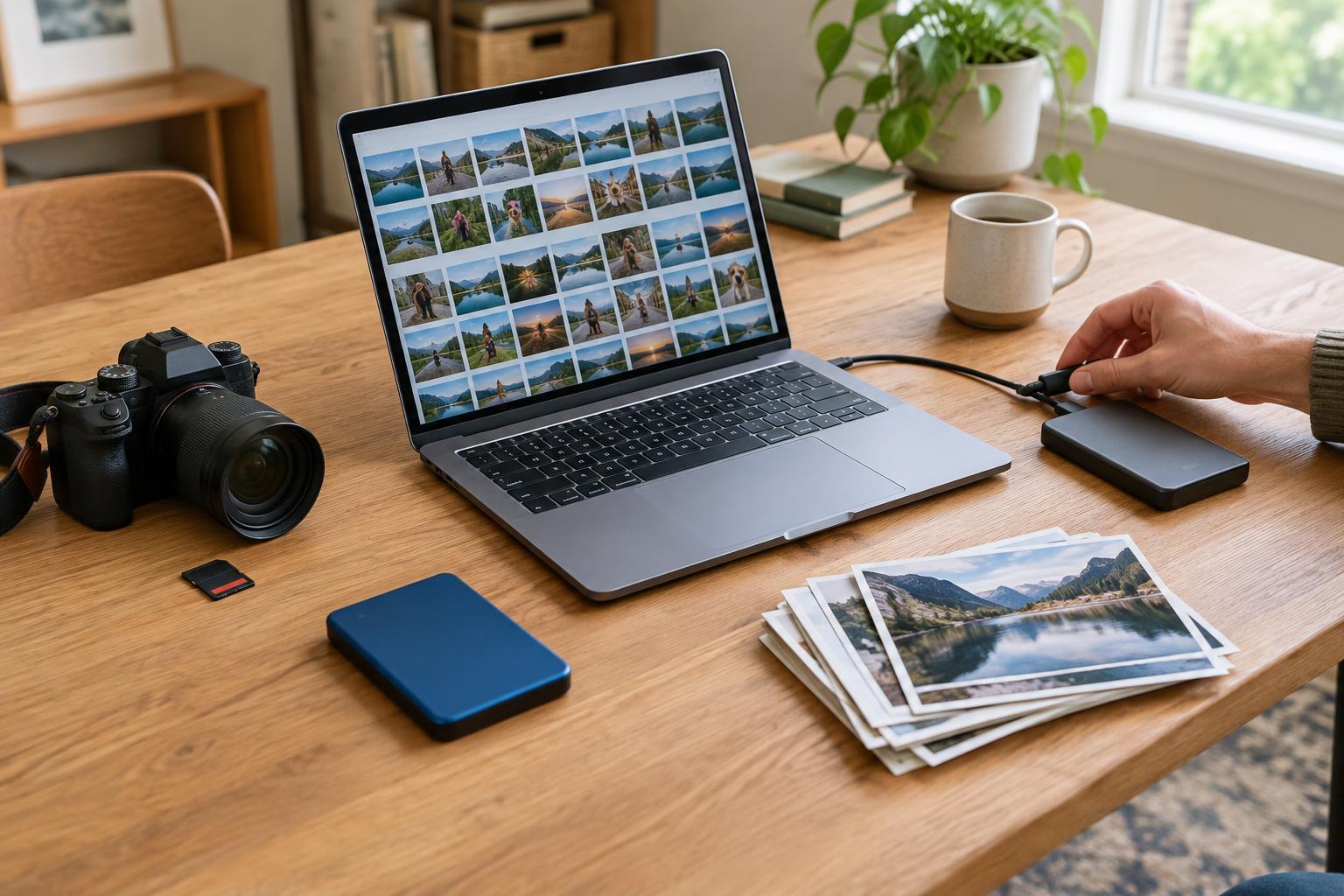
Treat the working library as one copy, not as its own backup. Keep another copy on a separate device, such as an external drive, and another in a different physical location. The goal is to avoid a single accident affecting every copy. A drive kept next to the computer helps with a failed internal drive, but it offers less protection if both devices are damaged or taken together.
Independence matters as much as distance. A synchronized folder can be useful for access across devices, but a deletion or unwanted edit may also synchronize. Similarly, multiple drives inside one storage unit may keep work available when a drive fails without providing a separate copy of the library. Look for a backup method that can retain earlier versions or deleted files, and learn how long it keeps them. If a copy contains sensitive images, consider encryption and store the recovery key somewhere you can find it without relying on the device being protected.
Build backup into the import routine
A consistent import process closes the gap between making photographs and protecting them. Copy files from the memory card to the working library, then make an independent backup before formatting the card. Confirm that the expected folders and file counts are present. Open a few files from the new copy to catch obvious transfer problems; where your software offers file verification, use it rather than relying only on a completed progress bar.
Make folder names and storage locations predictable enough that you can tell what has been copied. An automated backup schedule can help, but check its reports or destination periodically. A disconnected drive cannot receive a backup, and a full destination may stop accepting new work. After a major edit or catalog reorganization, allow enough time for the updated data to be copied before assuming it is protected.
Test a restore, not just a backup
A successful backup message does not prove that you can get your work back. Periodically choose a small set of originals, an edited image and any associated catalog or sidecar data. Restore them to a temporary folder rather than over the working library. Open the files, check that edits appear as expected and confirm that the restored folder structure makes sense. Delete the temporary test only after you have finished checking it.
Occasionally test the less convenient copy as well, especially one stored off-site or in a remote service. Note the steps, account details and software needed for recovery, without placing passwords in an unprotected note. If the restore depends on a catalog, test how to reconnect it to the images. These small rehearsals reveal missing folders, expired access or confusing procedures while the working library is still available.
Keep the plan manageable
The best plan is one you can repeat. Write down what is backed up, where each copy is kept, when copying happens and how to restore a folder. Revisit the plan when you change cameras, editing software, computers or storage locations. If storage is limited, distinguish replaceable exports from irreplaceable originals and editing records, while keeping enough information to reproduce finished work.
No arrangement removes every risk, and more copies are useful only if you know what they contain. Aim for separate copies, clear routines and occasional restore tests. Together, those habits turn a collection of drives and accounts into a photo library you can recover.