Prepare the destination before connecting the card
Choose where the original files will live before you begin. Create a folder with a name you can recognize later, such as a project name and the date of the shoot. If you used more than one card, give each card its own subfolder. This keeps files from different cards apart even when the camera has given them the same names. Check that the destination has enough free space for everything on the card, including videos, RAW files, JPEGs, and any other files you intend to keep.
Decide whether you will import through photo software or copy files with your computer’s file manager. Either method can work. In an import dialog, check whether the selected action is “Copy,” “Move,” or “Add.” Choose Copy when bringing files off a card; Add may only reference files where they already are. If your software offers renaming or duplicate-detection options, review them before starting rather than accepting a setting you do not understand.
Copy first, and leave the card unchanged
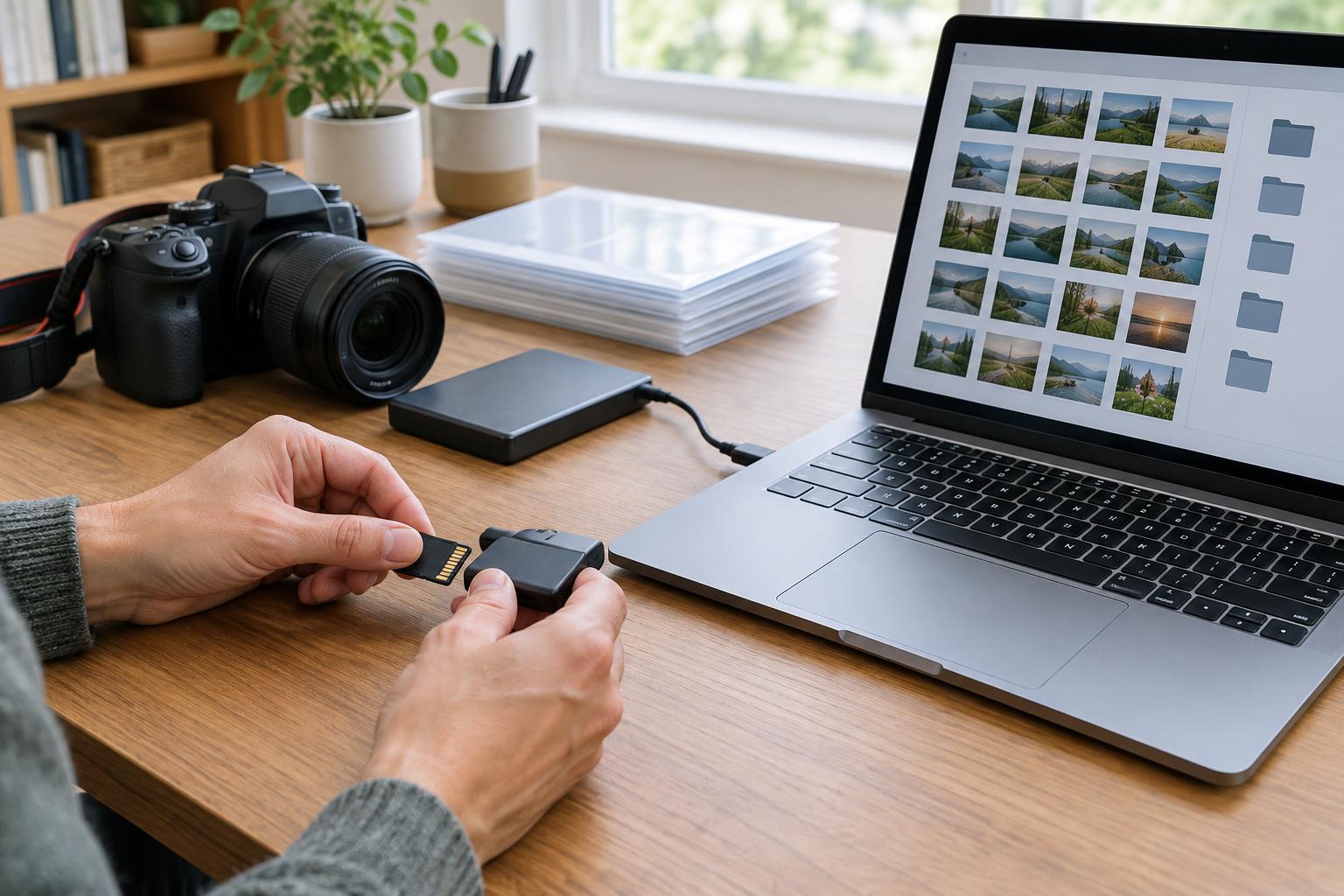
Connect the card using a reliable reader or a camera connection that can complete the transfer without interruption. If you are using a laptop, make sure it has enough power. Locate the card and identify the folders containing your images. Some cameras also store videos or related files in separate folders, so do not assume every file you need sits in one place.
Copy the files into the prepared destination rather than moving them. A copy leaves the card as your temporary fallback while you check the transfer. Avoid editing, deleting, or formatting files on the card during this stage. Wait for the transfer to finish before disconnecting anything, even if the destination folder already appears to contain photos. Then eject the card through your computer’s normal procedure.
Verify what arrived before trusting the import
A completed progress bar is useful, but it is not the whole check. Compare the contents of the card and destination: look for expected folders and file types, and compare file counts and total sizes where practical. If you copied several cards, check each one against its own destination folder. Be aware that hidden files or software-created files can make simple counts differ, so investigate a mismatch rather than treating every difference as a lost photograph.
Open a selection of transferred images, including files from the beginning and end of a sequence, and check that videos play if you imported them. For work where a missed or altered file would be especially costly, a copy tool that verifies files using checksums can provide a stronger check than counts or previews alone. Keep the card untouched until you are satisfied that the files you meant to transfer are present and readable.
Handle duplicate warnings without guessing
A duplicate filename does not necessarily mean a duplicate photo. Cameras can reuse names after a counter resets, and two cards may contain different images with identical names. If your computer asks whether to replace a file, do not overwrite it automatically. Copy the incoming files into a separate card folder or give them unique names, then compare the images and their details before deciding what to keep.
The reverse can happen too: the same photo may have two names after an earlier import or rename. Matching thumbnails are a clue, not proof that two files are identical; a RAW file and its JPEG can show the same scene while serving different purposes. Compare file types and sizes, and use a byte-for-byte or checksum comparison if you need to establish that two files are exact copies. Remove unwanted duplicates only after you know which version belongs in your working collection.
Back up, then make the card ready for reuse
Once the import is verified, make another copy of the originals on a separate drive or other storage location. A second folder on the same drive may help organization, but it will not protect you if that drive fails. Keep your editing workflow separate from this safety step: you can organize, rate, and adjust photos in software after the originals and backup are secure. If your editor uses a catalog, check that it points to the intended destination folder rather than to the memory card.
Only clear the card when you have confirmed the import and backup, and no longer need the card as a fallback. Formatting it in the camera you plan to use is generally a straightforward way to prepare it for the next shoot, but check the selected card carefully first. A repeatable routine—copy, verify, back up, then clear—makes each import easier to review and reduces the temptation to resolve a confusing warning by guessing.